The Best Digital Tools to Streamline Field Forms
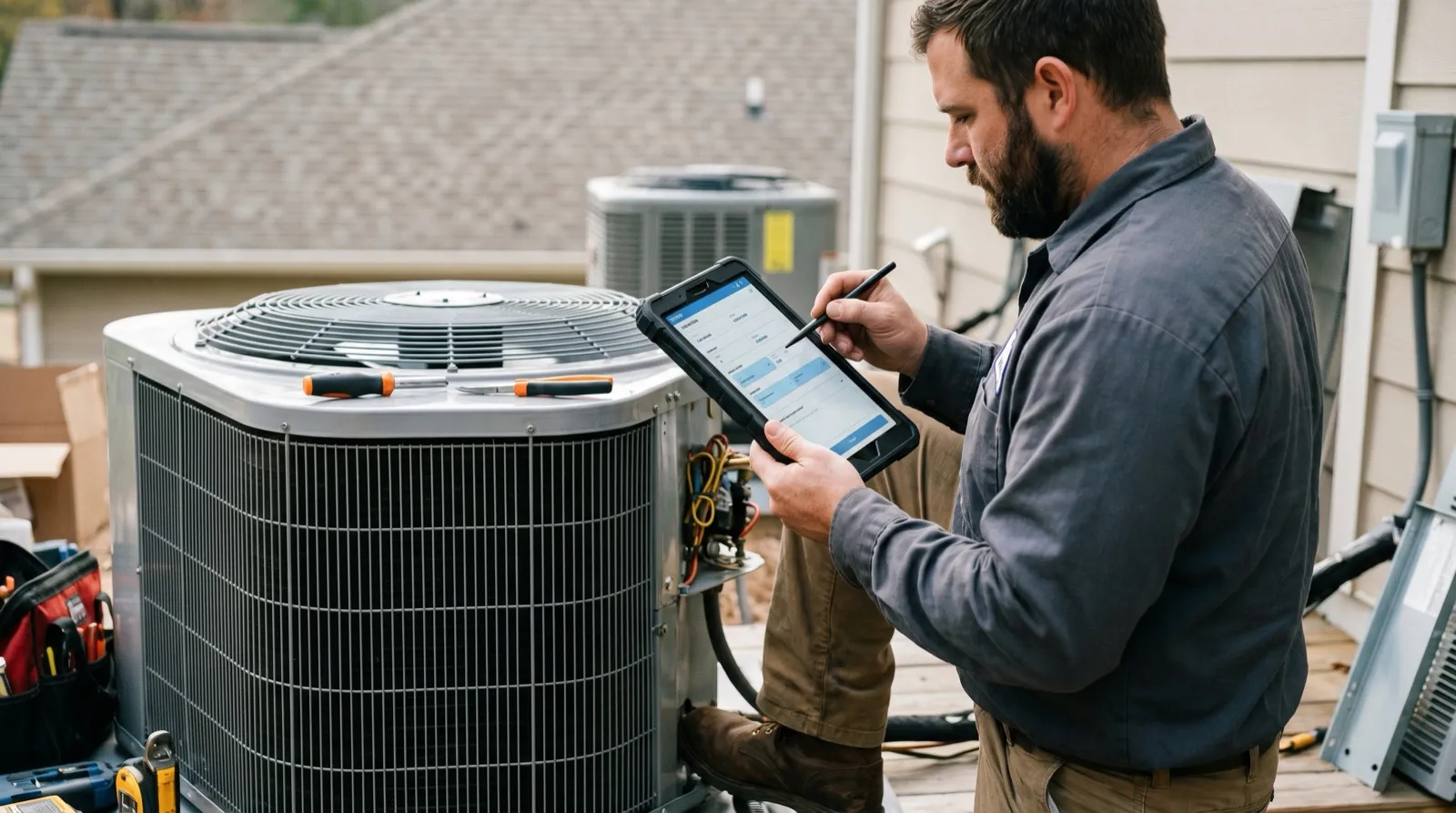
Filling out forms is a daily reality for field-service businesses — roofing, construction, pest control, HVAC, restoration. Inspections, work orders, service agreements, compliance logs. And for a long time the default tool was paper, because paper is fast, familiar, and specific to the job.
The problem with paper isn’t the filling out. It’s everything after: forms that get lost between the truck and the office, illegible handwriting, missing signatures, and someone re-typing the whole thing into a second system at the end of the day. Going digital should fix all of that. But a lot of tools only digitize the form — they put it on a screen and stop there, leaving the friction in place.
The digital tools worth adopting are the ones that streamline the whole workflow, not just the document. Here are the capabilities that actually move the needle, roughly in the order of how much time they give back.
1. Import your existing forms — don’t rebuild them
The single biggest reason digital form rollouts stall is that the tool asks you to recreate every form from scratch in a drag-and-drop designer. Your crew has ten years of muscle memory in those forms; a rebuilt version they don’t recognize gets abandoned fast.
The better tools take your existing PDFs and turn them into fillable digital forms that look identical to the paper version. The crew doesn’t have to relearn anything, and you’re live in days, not months. That’s the foundation naturalForms is built on — see the forms and templates page.
2. Capture offline — because the job doesn’t wait for signal
A form that loads offline but can't save offline isn't an offline form. Streamlining a field workflow starts with capture that doesn't depend on a connection.
Field work happens where the signal is weakest. A tool that needs a live connection to open a form or save a record turns a two-bar rural driveway into a bottleneck. The capabilities that matter here: the complete form pre-loads to the device, all data entry (text, photos, sketches, signatures) writes locally, and sync happens automatically in the background when the connection returns. This is the difference between a tool that works in the office and one that works in the field — the full argument is in offline-first vs. mobile-first.
3. Prefill, sign, and sync — the three that kill re-entry
Once the form is digital and works offline, the biggest remaining time drains are all forms of re-typing. Three capabilities remove them:
Prefill from your job system
Job number, site address, customer name, assigned tech — pulled in automatically from your project or CRM system, so nobody types known information on a phone screen in a parking lot.
Sign on the spot
A legally binding e-signature captured on the device, on-site, attached to the completed document with a full audit trail — no separate signing tool, no chasing the customer later.
Sync straight into your systems
The completed document routes back to the office and into the connected job system on its own — plus Zapier, a REST API, and webhooks for anything else you run. The data lands everywhere it needs to without a second entry.
Each of these removes a step that otherwise repeats on every job. Add photo and sketch capture attached to the form, and the crew documents the work as they go instead of reconstructing it afterward.
The real test: digitized vs. streamlined
Here’s the distinction that separates a tool worth adopting from one that just adds a login step: a digitized form is the same paper process on a screen — you still email it, still re-enter it. A streamlined form removes the work around it — prefilled instead of retyped, signed on the spot instead of chased, synced automatically instead of driven back.
When you evaluate any digital form tool, run it against that standard. Does it import the forms you already use? Does it capture offline? Does it prefill, sign, and sync without a second entry? If the answer is yes across the board, you’re not just going paperless — you’re getting hours back per crew, per week. For a closer look at how the field-to-office data flow connects your other systems, see data integration for field service.
Frequently Asked Questions
-
What's the fastest way to move field forms off paper?
- Import the forms you already use rather than rebuilding them. A tool that takes your existing PDFs and turns them into fillable digital forms gets your crew productive on day one, because the form looks exactly like the one they know. Rebuilding every form from scratch in a drag-and-drop designer is where most rollouts stall.
-
Do digital form tools work without a cell signal?
- The good ones do. Field work happens in basements, on rooftops, and in rural dead zones, so a form tool that needs a live connection to load or save is a liability. Look for offline-first capture: the form and all its data (including photos and signatures) save on the device and sync automatically when the connection returns.
-
What features actually save field crews time?
- The ones that remove typing and re-entry: prefilling job details from your management system, on-device e-signatures, photo and sketch capture attached to the form, and automatic sync back to the office. Each one cuts a manual step that otherwise repeats on every job, every day.
-
How do digital forms connect to the software we already use?
- Through integrations. Look for direct connections to your project or CRM system (so job data prefills and completed forms sync back), plus broader coverage via Zapier, a REST API, and webhooks for anything custom. The goal is that a completed form updates your other systems without anyone re-typing the data.
-
Is a form builder the same as a digital form tool?
- Not quite. A form builder asks you to recreate your paperwork in its designer. A field-focused tool imports your existing forms and adds the field capabilities — offline, signatures, photos, sync — around them. For field service, the second approach usually wins because the crew keeps the form they already trust.
-
What's the difference between digitizing a form and streamlining it?
- Digitizing just puts the form on a screen. Streamlining removes the work around it — prefilled fields instead of retyping, a signature captured on the spot instead of chased later, and automatic sync instead of a drive back to the scanner. A PDF on a tablet that still has to be emailed and re-entered isn't streamlined; it's just a digital version of the same friction.