Custom Forms vs. Templates: The 10-Year-Old PDF Wins
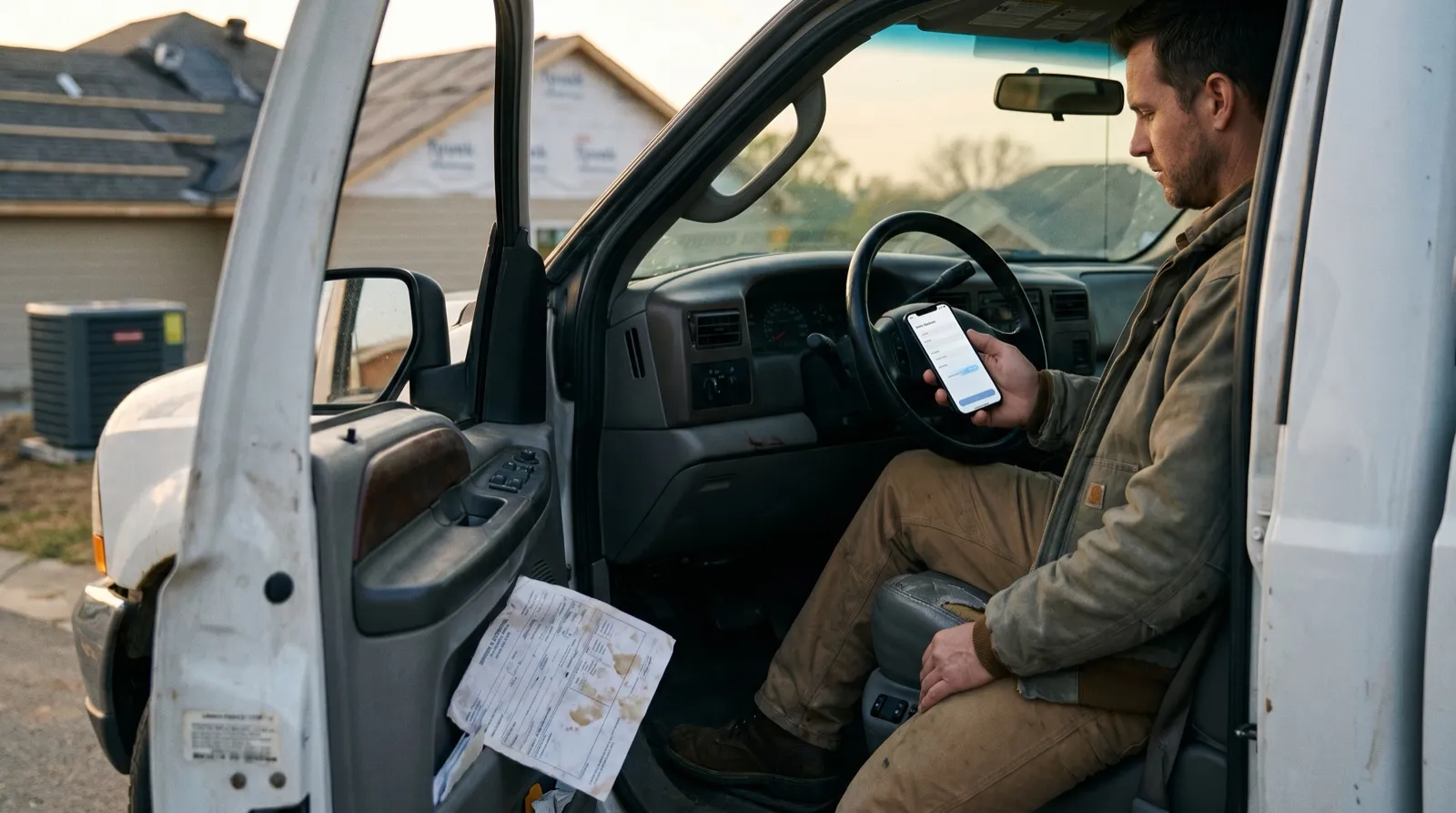
There’s a form living on a shared drive somewhere. Nobody knows who made it. It was last updated when a different guy was running the crew. It has a field labeled “Inspector Initials” and nobody who works here has the initials it already has typed in. And yet — every morning, someone prints five copies of it, the crew fills them out in a truck, and a stack of them lands on an office desk where they get scanned, renamed, and emailed to a folder that nobody checks.
That form is winning. Against your form builder.
This isn’t a knock on ambition. It’s an observation about why most form tools lose to the path of least resistance: the 10-year-old PDF is already trained into muscle memory, it doesn’t need a login, and — crucially — it asks exactly what that job requires, nothing more.
The question isn’t “paper vs. digital.” The question is why digital forms, which should be obviously better, so often feel worse to the people using them in the field.
The answer usually lives in one word: templates.
The Template Trap
Walk through the typical form builder onboarding and you’ll hit a library of pre-built forms. Safety inspection. Work order. Customer sign-off. They look reasonable from an office chair. From a job site, they’re somebody else’s paperwork with your company logo swapped in.
The problem isn’t that the questions are wrong. It’s that they’re generic. A template for a safety inspection has to work for a roofing contractor, an HVAC tech, and an electrical crew. So it’s written to cover everyone, which means it fits no one exactly. Fields get ignored. Fields get filled in wrong because they don’t quite match what the crew actually does. And then the form — like all forms that don’t fit — gets quietly abandoned in favor of whatever was there before.
A form that covers everyone fits no one. Crews don't skip fields out of laziness — they skip them because the field doesn't match the job.
Template libraries have their place. They’re useful as a starting point — a scaffold to build from. But if the form you hand your crew is a slightly renamed version of someone else’s inspection checklist, you haven’t improved the workflow. You’ve added a login step to the same broken process.
What “Custom” Actually Means in the Field
Custom forms get misunderstood as complicated. Build-it-from-scratch, developer-required, expensive-to-change complicated. That’s not what custom means when it’s done right.
Custom means the form knows what job it’s on. It knows that if the answer to question 3 is “Yes,” four follow-up fields become required — so nothing critical gets left blank. It knows the crew doing residential roofing fills out a different form than the crew doing commercial HVAC. It knows the customer’s name and address before the tech opens it, because that information already exists somewhere.
The single biggest source of field-to-office data errors isn’t bad handwriting — it’s re-entry. When crews fill out a form and someone in the office re-types the same data into a second system, errors multiply.
Custom forms built for the field do three things template-based tools rarely manage:
They prefill what's already known
Job number, site address, customer name, assigned tech — none of that should be something a crew member types on a phone screen in a parking lot. A custom form pulls it in automatically from the job record.
They make the right fields required
The form mirrors your PDF, so nothing gets hidden — but conditional logic can make a field mandatory based on the answers before it, and validation flags blanks and bad entries before submit. The crew can’t skip what matters for this job.
They close the loop without a middle step
When the form is done, it goes where it needs to go — to the customer, to the back office, into the job record — without someone carrying a clipboard back to a scanner.
That’s the gap between a template and a custom form. One is a document you fill out. The other is a workflow you complete.
Why Crews Hate Form Builders (Honestly)
Most crews don’t hate digital forms because they’re resistant to technology. They hate specific form builders because of specific, reasonable frustrations:
They weren’t designed for gloves and sun glare. A form with eight-point font and thirty fields doesn’t get easier to use because it’s on a phone. If anything, it’s harder.
They require connectivity that doesn’t exist. A form that spins trying to load on a spotty LTE connection in a rural job site is worse than paper. Paper doesn’t have a loading screen.
They weren’t built for this crew’s actual work. See: the template problem above.
They create extra steps, not fewer. If filling out a digital form and then explaining the same information in a separate email is the real workflow, the form builder didn’t solve anything. It added friction.
They break the handoff. A completed form that saves to a folder nobody monitors is just a digital pile of paper. The form is supposed to trigger something — an invoice, a follow-up, a record in the job management system.
These aren’t complaints about technology. They’re complaints about implementation. And most of them trace back to the same root cause: the form was built for a general use case, not for this crew’s specific work.
The Fix Isn’t a Better Template Library
Here’s what changes when the form is actually built for the job:
The crew fills it out because it’s fast — the fields they actually need, prefilled where possible, with conditional logic making the must-have answers required so nothing critical slips through. The customer signs it on the spot because the form is clean and the tech can walk them through it in sixty seconds. The back office gets a completed document the moment the job closes, already formatted, already attached to the right job record.
That’s not a hypothetical. That’s what happens when the form is custom-built for a specific workflow instead of adapted from a general template.
The 10-year-old PDF wins not because it’s good, but because it’s familiar and specific. It asks exactly the right questions (even if inefficiently) and the crew knows it by heart. A digital form only wins when it has both of those qualities — familiar enough to use without training, and specific enough to actually capture the right data.
naturalForms is built around that idea. The Templates Library isn’t a set of forms to hand to your crew as-is — it’s a set of field-tested starting points that your forms get built from, customized to your workflow, your job types, and your field conditions. The goal is a form so well-fitted to your work that your crew stops noticing it’s there.
That’s when the 10-year-old PDF finally loses.
Frequently Asked Questions
-
Why do crews keep using paper forms even when the company has a digital option?
- Usually because the digital option asks for more effort, not less. Paper forms are fast, familiar, and specific to the job. Digital forms win when they're faster and more specific — which requires customization, not just digitization.
-
What's the difference between a form template and a custom form?
- A template is a general-purpose starting point. A custom form is built around a specific job type, crew, and workflow — with prefilled fields, conditional logic, and a clear handoff path built in. Templates are useful scaffolding; they're not the finished product.
-
Does building custom forms require a developer or technical staff?
- Not with the right platform. naturalForms is built so that operations managers and office staff can configure forms without writing code. If you can describe what the form needs to do, you can build it.
-
What does "conditional logic" mean for a field form?
- It means the form reacts to answers. Because naturalForms forms mirror your PDF, fields don't hide — instead, one answer can make others required. Answer "Yes" to "Was PPE required?" and the follow-up PPE fields become mandatory, so the crew can't skip what matters. Validation then catches blanks and bad entries before the form is submitted.
-
How does prefilling work in the field?
- When a form is tied to a job record in your management system, information that already exists — customer name, address, job number, assigned tech — loads into the form automatically. The crew confirms it rather than typing it from scratch.
-
What happens to completed forms in naturalForms?
- A completed form can route automatically to the customer as a signed document, to the back office as a record, and into the connected job management system — all without anyone carrying paper or retyping data.
-
Can naturalForms forms work without a cell signal?
- Yes. Forms work offline and sync when connectivity is restored. This matters in basements, rural job sites, and anywhere LTE is unreliable.
-
Is naturalForms a replacement for a template library?
- No — it starts there. The Templates Library gives you field-tested form structures as a foundation. What makes it work is what happens next: customizing those forms to your specific workflow so your crew actually uses them.